Card title
Cards wrap self-contained content with a border and padding, no classes needed.
A plug-and-play CSS theme that styles all standard HTML elements using pure element selectors. No classes. Defaults out of the box, and a set of tokens to build your own look on top.
See a demo page: Acme Robotics demo — a landing page built without a single class.
<h1> - <h6>
Headings establish content hierarchy. LunarCSS applies a modular scale for font sizes, with responsive adjustments for smaller screens.
<h1>Heading 1 <small>With subtitle</small></h1>
<h2>Heading 2</h2>
<h3>Heading 3</h3>
<h4>Heading 4</h4>
<h5>Heading 5</h5>
<h6>Heading 6</h6><p>, <blockquote>, <pre>, <hr>
Core text elements for content. Paragraphs have optimized line-height and max-width for readability.
This is a standard paragraph. Lorem ipsum dolor sit amet, consectetur adipiscing elit. Sed do eiusmod tempor incididunt ut labore et dolore magna aliqua. Ut enim ad minim veniam, quis nostrud exercitation ullamco laboris.
A second paragraph demonstrating spacing. Duis aute irure dolor in reprehenderit in voluptate velit esse cillum dolore eu fugiat nulla pariatur.
<p>
  This is a standard paragraph. Lorem ipsum dolor sit amet, consectetur
  adipiscing elit. Sed do eiusmod tempor incididunt ut labore et dolore magna
  aliqua. Ut enim ad minim veniam, quis nostrud exercitation ullamco laboris.
</p>
<p>
  A second paragraph demonstrating spacing. Duis aute irure dolor in
  reprehenderit in voluptate velit esse cillum dolore eu fugiat nulla pariatur.
</p>The only way to do great work is to love what you do. If you haven't found it yet, keep looking. Don't settle.
Steve Jobs
<blockquote>
  <p>
    The only way to do great work is to love what you do. If you haven't found
    it yet, keep looking. Don't settle.
  </p>
  <cite>Steve Jobs</cite>
</blockquote>function greet(name) {
console.log(`Hello, ${name}!`);
return true;
}
greet('World');<pre><code>function greet(name) {
console.log(`Hello, ${name}!`);
return true;
}
greet('World');</code></pre>Content above the rule.
Content below the rule.
<p>Content above the rule.</p>
<hr />
<p>Content below the rule.</p><a>, <strong>, <em>, <code>, etc.
Inline elements for semantic text formatting. Each has distinct styling while maintaining harmony.
This is a regular link and this is a link to external site.
<p>
  This is a <a href="#">regular link</a> and this is a
  <a href="#" target="_blank">link to external site</a>.
</p>
<h4>
  <a href="#">Lnk in a heading</a>
</h4>
<nav aria-label="Example">
  <ul>
    <li><a href="#" aria-current="page">Current page</a></li>
    <li><a href="#">Another page</a></li>
    <li><a href="#">One more</a></li>
  </ul>
</nav><strong>Strong text</strong>
<br />
<b>Bold text</b>
<br />
<em>Emphasized text</em>
<br />
<i>Italic text</i>
<br />
<mark>Marked/highlighted</mark>
<br />
<small>Small text</small>
<br />
<s>Strikethrough</s>
<br />
<del>Deleted text</del>
<br />
<ins>Inserted text</ins>
<br />
H<sub>2</sub>O (subscript)
<br />
E=mc<sup>2</sup> (superscript)Inline code element for short snippets.
Press Ctrl + C to copy.
Sample output: Hello, World!
Variable: x = 42
<p>Inline <code>code element</code> for short snippets.</p>
<p>Press <kbd>Ctrl</kbd> + <kbd>C</kbd> to copy.</p>
<p>Sample output: <samp>Hello, World!</samp></p>
<p>Variable: <var>x</var> = 42</p>CSS is awesome.
LunarCSS is a classless CSS framework.
<p><abbr title="Cascading Style Sheets">CSS</abbr> is awesome.</p>
<p><dfn>LunarCSS</dfn> is a classless CSS framework.</p>She said, This is amazing!
As mentioned in The Art of CSS.
<p>She said, <q>This is amazing!</q></p>
<p>As mentioned in <cite>The Art of CSS</cite>.</p>Published on .
<p>
  Published on
  <time datetime="2024-01-15">January 15, 2024</time>.
</p><ul>, <ol>, <dl>
Ordered, unordered, and definition lists with proper indentation and nesting support.
<ul>
  <li>First item</li>
  <li>
    Second item
    <ul>
      <li>Nested item</li>
      <li>
        Another nested
        <ul>
          <li>Deep nested</li>
        </ul>
      </li>
    </ul>
  </li>
  <li>Third item</li>
</ul><ol>
<li>First step</li>
<li>
Second step
<ol>
<li>Sub-step A</li>
<li>
Sub-step B
<ol>
<li>Detail i</li>
</ol>
</li>
</ol>
</li>
<li>Third step</li>
</ol><dl>
<dt>HTML</dt>
<dd>
HyperText Markup Language - the standard markup language for documents
designed to be displayed in a web browser.
</dd>
<dt>CSS</dt>
<dd>
Cascading Style Sheets - a style sheet language used for describing the
presentation of a document written in HTML.
</dd>
<dt>JavaScript</dt>
<dd>
A programming language that is one of the core technologies of the World
Wide Web.
</dd>
<dd>Often abbreviated as JS.</dd>
</dl><table>, <thead>, <tbody>, <th>,
<td>
A data sheet: open rules, mono column labels over a tick ruler, tabular figures, and a striped band above the totals. Hover a cell to mark its row and column header, or a header to light up its column.
| Month | Revenue | Expenses | Profit |
|---|---|---|---|
| January | $10,000 | $6,000 | $4,000 |
| February | $12,500 | $7,200 | $5,300 |
| March | $15,000 | $8,100 | $6,900 |
| Total | $37,500 | $21,300 | $16,200 |
<table>
  <caption>
    Monthly Sales Data
  </caption>
  <thead>
    <tr>
      <th scope="col">Month</th>
      <th scope="col">Revenue</th>
      <th scope="col">Expenses</th>
      <th scope="col">Profit</th>
    </tr>
  </thead>
  <tbody>
    <tr>
      <th scope="row">January</th>
      <td>$10,000</td>
      <td>$6,000</td>
      <td>$4,000</td>
    </tr>
    <tr>
      <th scope="row">February</th>
      <td>$12,500</td>
      <td>$7,200</td>
      <td>$5,300</td>
    </tr>
    <tr>
      <th scope="row">March</th>
      <td>$15,000</td>
      <td>$8,100</td>
      <td>$6,900</td>
    </tr>
  </tbody>
  <tfoot>
    <tr>
      <th scope="row">Total</th>
      <td>$37,500</td>
      <td>$21,300</td>
      <td>$16,200</td>
    </tr>
  </tfoot>
</table><form>, <fieldset>, <input>, <select>,
<button>
Form elements with consistent styling across browsers. Focus states, validation states, and disabled states are all handled.
<form onsubmit="event.preventDefault()">
  <label for="text-input">Text Input</label>
  <input type="text" id="text-input" placeholder="Enter text..." />

  <label for="email-input">Email</label>
  <input type="email" id="email-input" placeholder="you@example.com" />

  <label for="password-input">Password</label>
  <input type="password" id="password-input" placeholder="••••••••" />

  <label for="search-input">Search</label>
  <input type="search" id="search-input" placeholder="Search..." />

  <label for="url-input">URL</label>
  <input type="url" id="url-input" placeholder="https://example.com" />

  <label for="tel-input">Phone</label>
  <input type="tel" id="tel-input" placeholder="+1 (555) 123-4567" />

  <label for="disabled-input">Disabled Input</label>
  <input type="text" id="disabled-input" value="Can't edit this" disabled />

  <label for="readonly-input">Read-only Input</label>
  <input type="text" id="readonly-input" value="Read only value" readonly />
</form><label for="number-input">Number</label>
<input type="number" id="number-input" placeholder="0" min="0" max="100" />
<label for="date-input">Date</label>
<input type="date" id="date-input" />
<label for="time-input">Time</label>
<input type="time" id="time-input" />
<label for="datetime-input">Date & Time</label>
<input type="datetime-local" id="datetime-input" />
<label for="month-input">Month</label>
<input type="month" id="month-input" />
<label for="week-input">Week</label>
<input type="week" id="week-input" /><label for="textarea-demo">Message</label>
<textarea
id="textarea-demo"
rows="4"
placeholder="Write your message here..."
></textarea><label for="select-demo">Choose an option</label>
<select id="select-demo">
<option value="">Select...</option>
<optgroup label="Group 1">
<option value="1">Option 1</option>
<option value="2">Option 2</option>
</optgroup>
<optgroup label="Group 2">
<option value="3">Option 3</option>
<option value="4">Option 4</option>
</optgroup>
</select>
<label for="select-multiple">Multiple Select</label>
<select id="select-multiple" multiple>
<option value="1">Choice A</option>
<option value="2">Choice B</option>
<option value="3">Choice C</option>
<option value="4">Choice D</option>
</select><label>
<input type="checkbox" name="interest" value="design" />
Design
</label>
<label>
<input type="checkbox" name="interest" value="development" checked />
Development
</label>
<label>
<input type="checkbox" name="interest" value="marketing" />
Marketing
</label><label>
<input type="radio" name="plan" value="free" />
Free
</label>
<label>
<input type="radio" name="plan" value="pro" checked />
Pro
</label>
<label>
<input type="radio" name="plan" value="enterprise" />
Enterprise
</label><label for="range-input">Range: <output id="range-output">50</output></label>
<input
type="range"
id="range-input"
min="0"
max="100"
value="50"
oninput="document.getElementById('range-output').value = this.value"
/><label for="color-input">Color picker</label>
<input type="color" id="color-input" value="#ff5623" />
<label for="color-input-2">Disabled</label>
<input type="color" id="color-input-2" value="#2a2c2f" disabled /><label for="file-input">Upload a file</label>
<input type="file" id="file-input" /><label for="browser">Choose your browser:</label>
<input
list="browsers"
id="browser"
name="browser"
placeholder="Type to search..."
/>
<datalist id="browsers">
<option value="Chrome"></option>
<option value="Firefox"></option>
<option value="Safari"></option>
<option value="Edge"></option>
<option value="Opera"></option>
</datalist><form onsubmit="event.preventDefault()">
<fieldset>
<legend>Shipping address</legend>
<label for="street-input">Street</label>
<input type="text" id="street-input" placeholder="12 Dock Road" />
<label for="city-input">City</label>
<input type="text" id="city-input" placeholder="Ceres Port" />
</fieldset>
<fieldset disabled>
<legend>Billing address (disabled)</legend>
<label for="billing-input">Same as shipping</label>
<input type="text" id="billing-input" value="12 Dock Road, Ceres Port" />
</fieldset>
</form><label>Progress (70%)</label>
<progress value="70" max="100">70%</progress>
<label>Meter (optimal)</label>
<meter value="0.8" min="0" max="1" low="0.3" high="0.7" optimum="0.9">
80%
</meter>
<label>Meter (suboptimal)</label>
<meter value="0.5" min="0" max="1" low="0.3" high="0.7" optimum="0.9">
50%
</meter>
<label>Meter (poor)</label>
<meter value="0.2" min="0" max="1" low="0.3" high="0.7" optimum="0.9">
20%
</meter>Answer to the Ultimate Question of Life, the Universe, and Everything:
<p>
  Answer to the Ultimate Question of Life, the Universe, and Everything:
  <output>42</output>
</p>
A <button> on its own is cut at the top-right and
bottom-left corners. Input buttons stay rectangular: the cut is
drawn with ::before and ::after, and
<input> is a void element, so it can't have
pseudo-elements.
<button type="button">Button</button>
<br />
<input type="submit" value="Submit" />
<br />
<input type="reset" value="Reset" />
<br />
<button type="button" disabled>Disabled</button>Put controls next to each other and they group up: the cut corners disappear where they touch, so the row reads as one shape. Only the first keeps its bottom-left cut, only the last its top-right one. Spacing between them needs the optional layout stylesheet.
<div>
  <button>First</button>
  <button>Middle</button>
  <button>Last</button>
</div><div>
<input
type="search"
placeholder="Search drives…"
aria-label="Search drives"
/>
<button type="submit">Search</button>
</div><div>
<select aria-label="Model">
<option>All models</option>
<option>C-90 Shuttle</option>
<option>C-137 Warp Drive</option>
</select>
<button>Filter</button>
</div><div>
<button type="submit">Send</button>
<input type="reset" value="Clear" />
</div><figure>, <figcaption>, <img>
Images, video, iframes and canvas are responsive by default: they never grow wider than their container, and keep their aspect ratio.
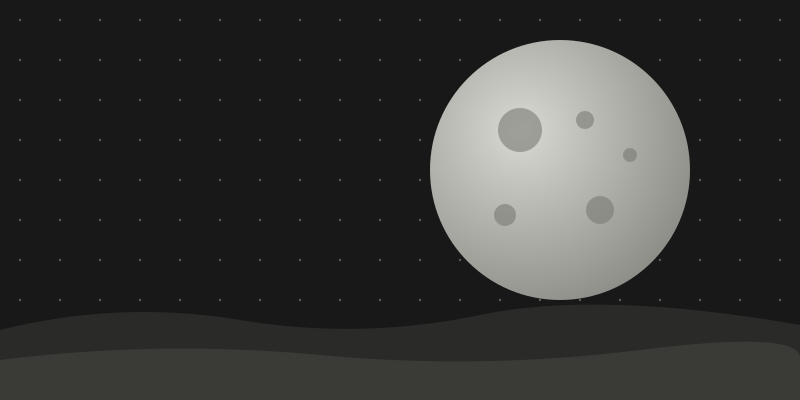
<figure>
  <img
    src="./figure.svg"
    alt="A grey moon over a dark, rocky horizon"
    width="800"
    height="400"
  />
  <figcaption>Fig. 1: Moonrise over a rocky horizon.</figcaption>
</figure><details>, <summary>, <dialog>, [popover]
Native interactive elements that provide disclosure widgets, modal dialogs and popovers without JavaScript.
LunarCSS is a classless CSS framework that provides beautiful default styles for all standard HTML elements. Just include the CSS file and your HTML will look great!
Simply add the LunarCSS stylesheet to your HTML document. No classes required—the framework styles all elements using element selectors.
Yes! LunarCSS uses CSS custom properties (variables) for all colors, spacing, and typography. Override the variables in your own stylesheet to create a custom theme.
Details can be nested inside other details elements.
<details>
  <summary>What is LunarCSS?</summary>
  <p>
    LunarCSS is a classless CSS framework that provides beautiful default styles
    for all standard HTML elements. Just include the CSS file and your HTML will
    look great!
  </p>
</details>

<details>
  <summary>How do I use it?</summary>
  <p>
    Simply add the LunarCSS stylesheet to your HTML document. No classes
    required—the framework styles all elements using element selectors.
  </p>
</details>

<details>
  <summary>Can I customize it?</summary>
  <p>
    Yes! LunarCSS uses CSS custom properties (variables) for all colors,
    spacing, and typography. Override the variables in your own stylesheet to
    create a custom theme.
  </p>

  <details>
    <summary>Nested details</summary>
    <p>Details can be nested inside other details elements.</p>
  </details>
</details><button
type="button"
onclick="document.getElementById('demo-dialog').showModal()"
>
Open Dialog
</button>
<dialog id="demo-dialog">
<header>
<h3>Modal Dialog</h3>
</header>
<p>
This is a native HTML dialog element. It includes a backdrop, is centered on
the screen, and shares the card look.
</p>
<p>Press <kbd>Esc</kbd> or click the button below to close.</p>
<footer>
<form method="dialog">
<button type="submit">Close Dialog</button>
</form>
</footer>
</dialog>A native popover. Click outside it or press Esc to close.
<button type="button" popovertarget="demo-popover">Toggle Popover</button>

<div id="demo-popover" popover>
  <p>A native popover. Click outside it or press <kbd>Esc</kbd> to close.</p>
</div><article>
Every article is a card. Add an optional header and footer. Sibling articles lay out as a responsive grid.
Cards wrap self-contained content with a border and padding, no classes needed.
<article>
  <header>
    <h3>Card title</h3>
  </header>
  <p>
    Cards wrap self-contained content with a border and padding, no classes
    needed.
  </p>
  <footer>
    <button>Action</button>
  </footer>
</article>Articles can contain articles, such as comments.
A nested comment card.
<article>
  <header><h4>Post</h4></header>
  <p>Articles can contain articles, such as comments.</p>
  <article>
    <p>A nested comment card.</p>
  </article>
</article><address>
The address element for contact information.
<address>
  LunarCSS Project<br />
  123 Web Dev Lane<br />
  Internet City, WW 12345<br />
  <a href="mailto:hello@lunarcss.dev">hello@lunarcss.dev</a>
</address>